Replacing a Legacy DDNG485
The device icon enables you to distinguish between a current device and a legacy device. The current device has a yellow fill, and a legacy device has a white fill.
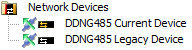
Replace existing legacy device with the current device:
-
Connect SB to the spur side of the legacy DDNG485 (Port 1).
-
Click
 Insert Devices from Network ( Ctrl+L ).
 -
Sign on the existing device. Once detected by SB, click
 Add and Load Devices to add the device to the job.
 -
Close the Insert Devices from Network window.
-
Install the new device.
-
In System view, select the device and click
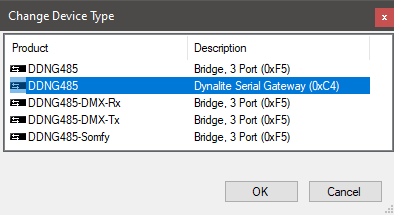
 Change Device Type ( Alt+Y ).
 -
Select Dynalite Serial Gateway (0xC4).
-
Click
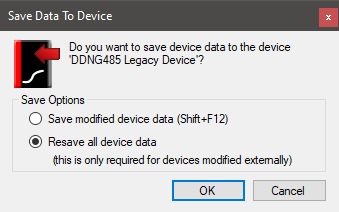
 Save to Device ( F12 ).
 -
Select Resave all device data and click .